AssetLink User Guide
Scenario-based guide to managing your financial life with AssetLink.
Getting Started
AssetLink is a local-first financial management app. No online account is required — all features work fully offline. Your data is stored in an encrypted database on your device.
Onboarding & Security Setup
On first launch, a brief feature overview is shown. AssetLink operates on a Zero Telemetry principle — no analytics are ever sent to our servers. Choose your storage mode (optional Google Drive sync, or fully offline) to get started.
Building Your Vault
AssetLink encrypts your entire database with transparent AES-256-CBC encryption via SQLCipher. Choose between System Key mode (auto-unlocks on your device) or Master Password mode (access from any device with your passphrase). Either way, your vault cannot be opened without your credentials.
Creating Initial Accounts
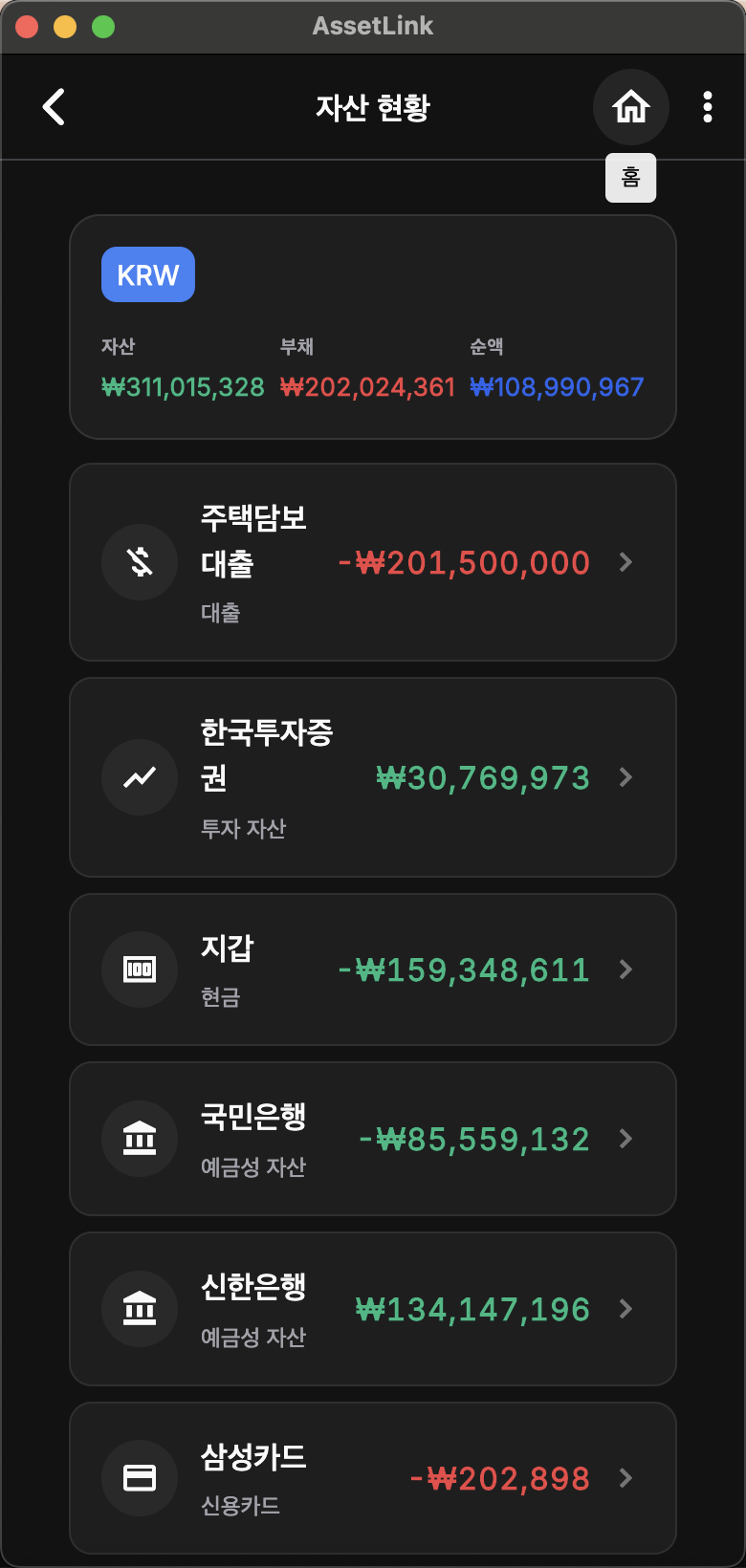
AssetLink uses a professional double-entry bookkeeping account structure: Assets, Liabilities, Equity, Income, and Expense. Add your checking accounts, cash, and credit cards, then set their opening balances against an Opening Balance Equity account.
Recording Daily Expenses
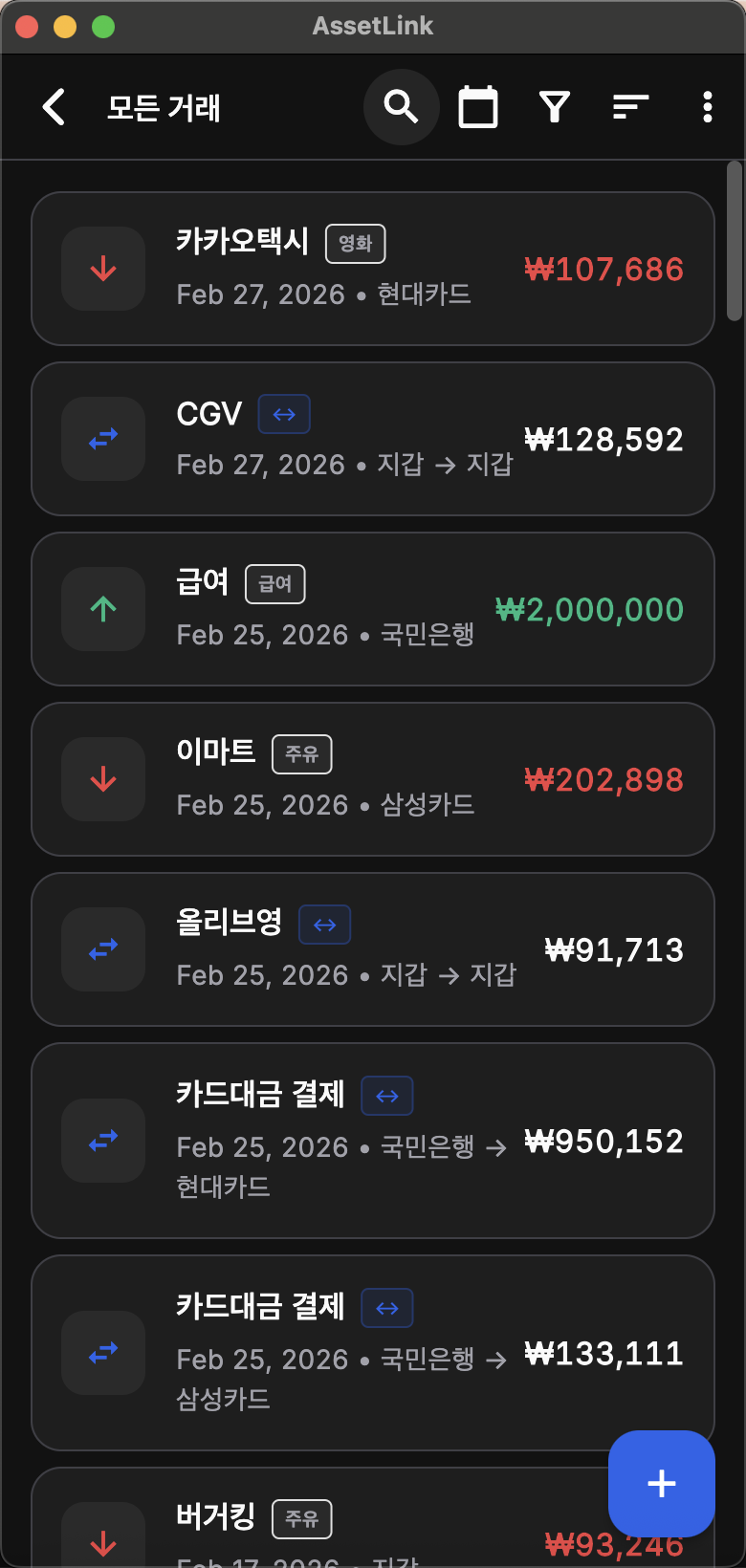
Use manual entry to record daily expenses by category. Following double-entry principles, every transaction must have balanced debit and credit entries.
Importing Transactions with AI
- Ask an AI assistant to format your card notifications, receipts, or bank statement CSV files into AssetLink-compatible CSV — then import in bulk.
- Copy cash transactions or card alerts to clipboard and paste them quickly into a new transaction.
- Download CSV/Excel statements from your bank, let AI clean and reformat them, then import to process hundreds of transactions at once.
Exploring the Interface
AssetLink's visualization tools give you a comprehensive snapshot of your financial health at a glance.
Dashboard: Financial Summary
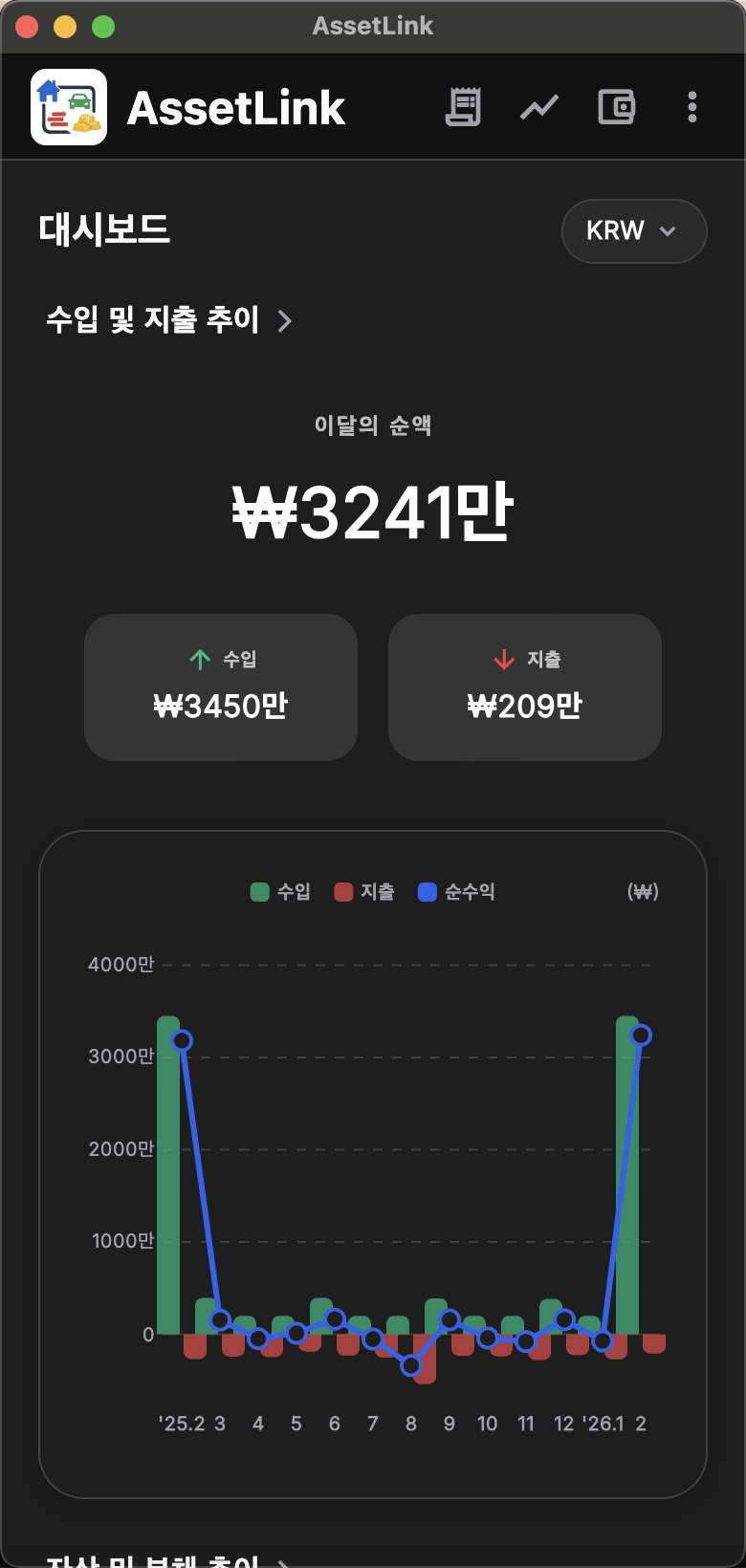
See your current Net Worth, total assets, and total liabilities at a glance. Switch your dashboard base currency (e.g. KRW, USD) to match your primary region.
Income & Expense Analysis
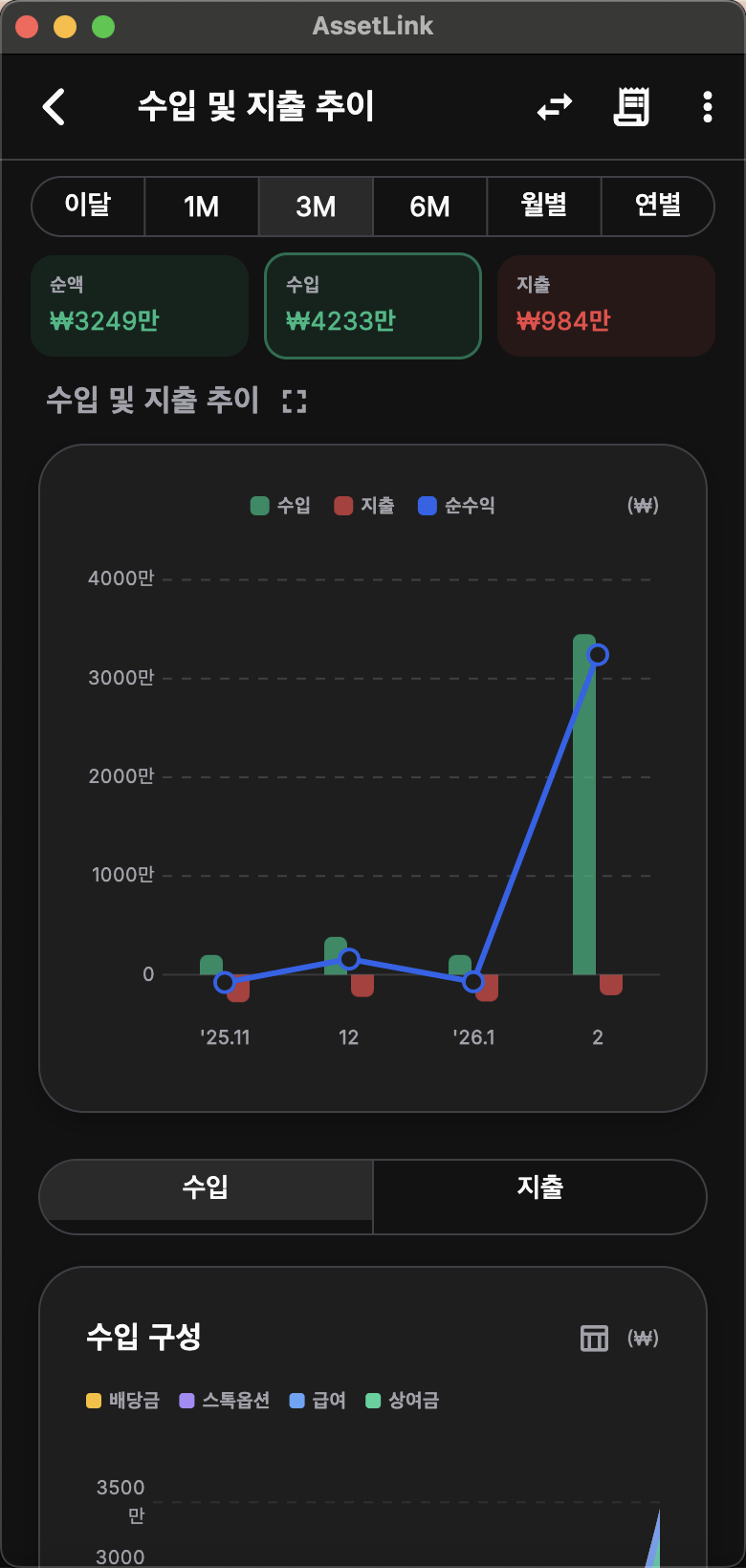
Pie charts and bar charts by period show where spending is concentrated. Tap any bar to drill down into specific transactions. Tap the table icon (📊) in the top-right to open the full-screen Composition Table, which shows amounts broken down by category and month. Tap any cell to jump directly to the transactions for that category and period.
Asset & Liability Allocation
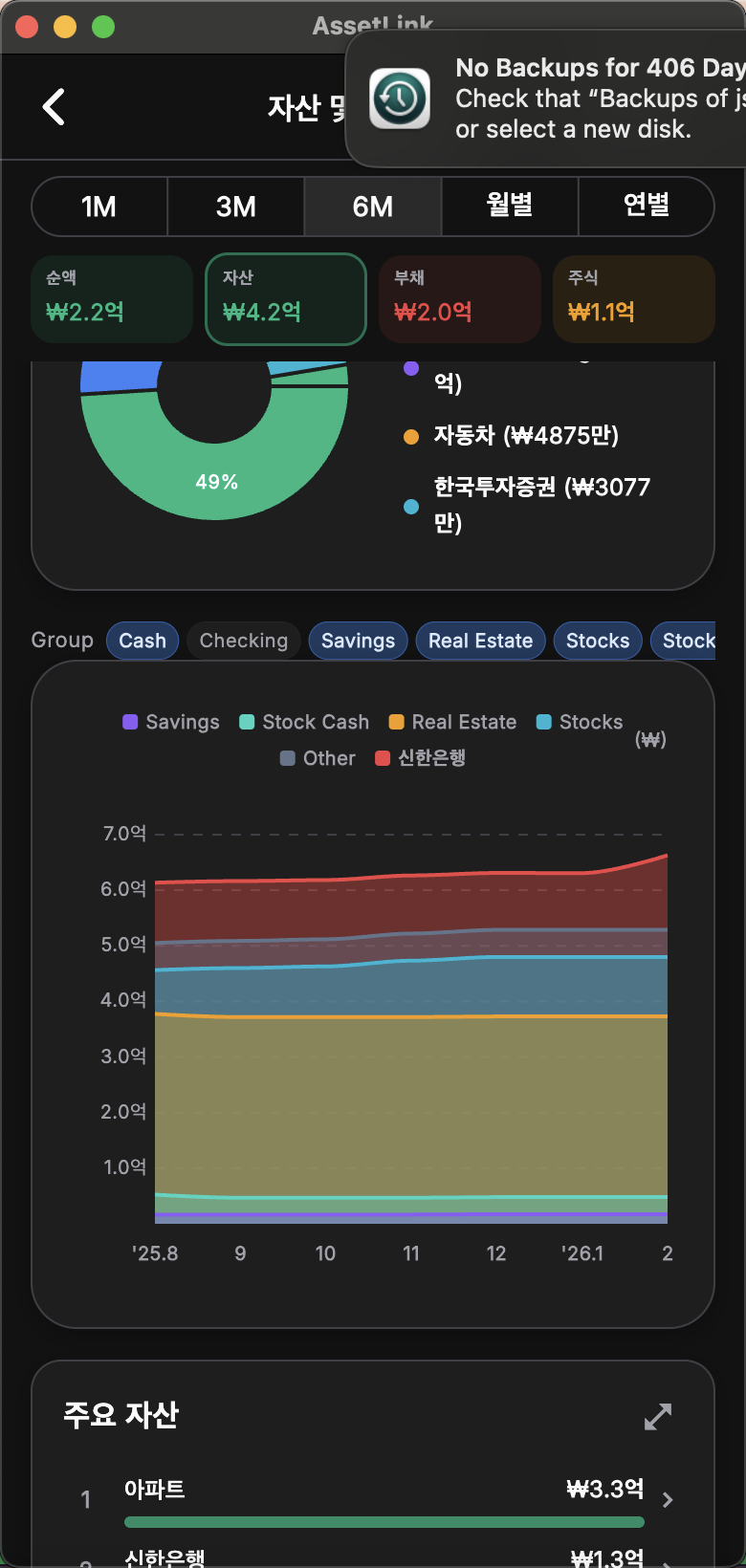
See how your assets are distributed across savings, stocks, real estate, and more — and visualize your debt-to-asset ratio intuitively. Below the pie chart, a stacked area chart shows how each asset group's share has evolved over time, with each type shown as a distinct colored band. Tap any chip in the composition row to ungroup that asset type, isolating its historical trend independently from the rest.
Financial Trends
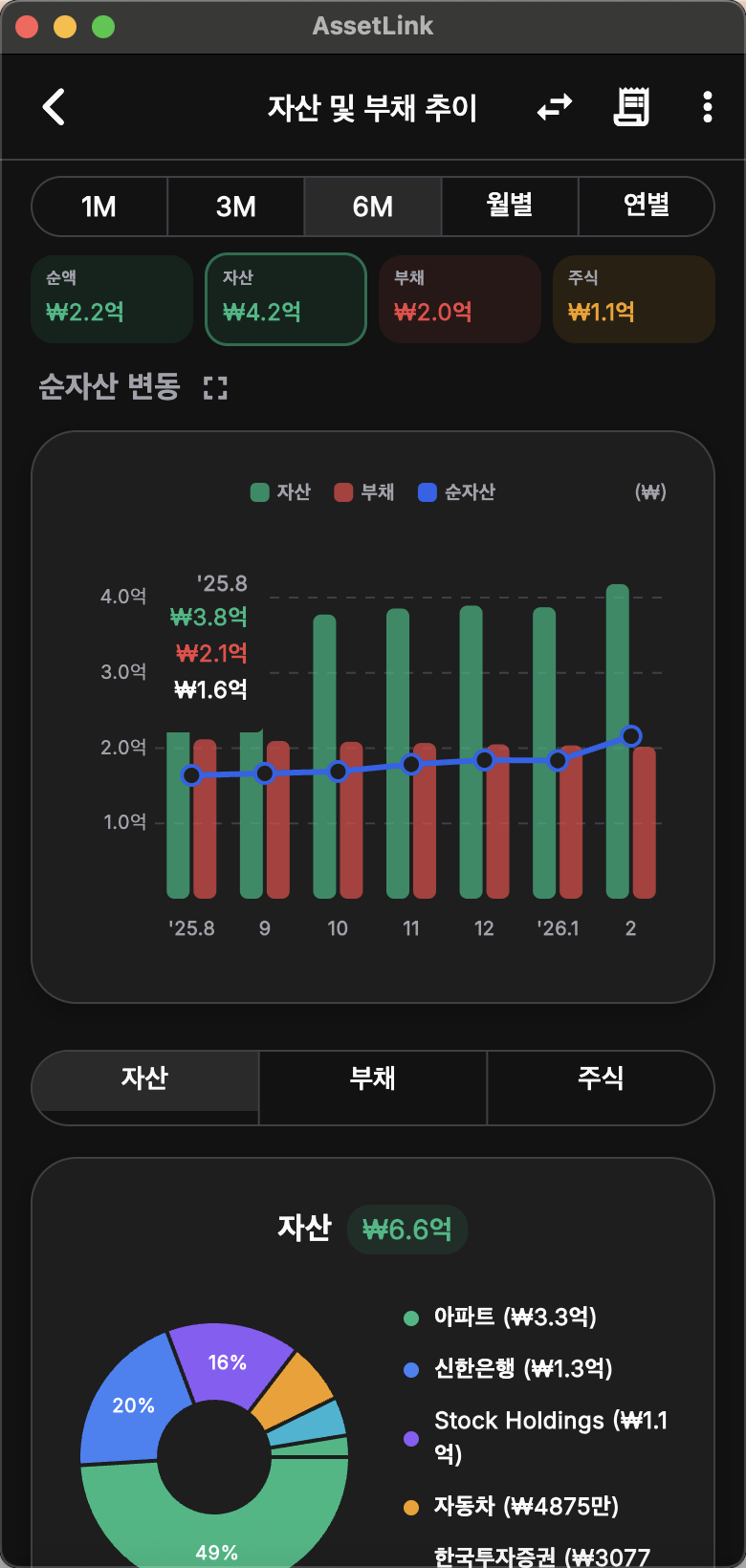
Track monthly net worth changes as a line chart and compare asset, liability, and stock balances by period. Use the ⋮ menu to toggle Include Stock Gain: ON uses market value and includes vesting income and capital gains/losses; OFF uses cost basis and hides stock events from income/expense analysis.
Best Practices
Expert tips for keeping your data accurate and your management efficient.
Regular Data Updates
Import bank statements monthly or bi-weekly, check for missing entries, and complete account reconciliation to keep your books accurate.
Auto-Categorization
Set category keywords (e.g. "Starbucks" → "Expense:Food:Cafe") so imported transactions are categorized automatically, dramatically reducing manual work. Use the analytics view to find uncategorized items and map them.
Privacy Mode
Tap the eye icon at the top to instantly mask sensitive amounts when sharing your screen or in public spaces.
Deactivating Accounts
Instead of deleting closed credit cards or unused accounts, mark them as Inactive. This preserves your historical records and statistics while keeping your account list clean.
Transfers & Fees
Connect financial flows across institutions into a single, coherent transfer record.
Connect Transfer
Find transactions that were incorrectly split across accounts (e.g. a withdrawal from Bank A and a deposit to Bank B) and link them as a single Transfer. This prevents double-counting income and expenses on your dashboard.
Advanced Search & Find Similar
Set an Amount Gap and Date Range tolerance to find matching transfer pairs even when amounts differ slightly due to fees, or dates differ by a day or two.
Automatic Fee Separation
The system automatically detects transfer fees. The total amount is split into the actual transferred principal and the fee paid, recorded as separate line items.
Navigating Linked Transfers
On any linked transfer transaction, use 'Go to Paired Account' to instantly jump between the source and destination accounts.
Stock Portfolio
Beyond simple balance tracking — institutional-grade portfolio management with tax optimization. AssetLink uses a 3-Ledger accounting model internally.
Setting Up a Brokerage Account
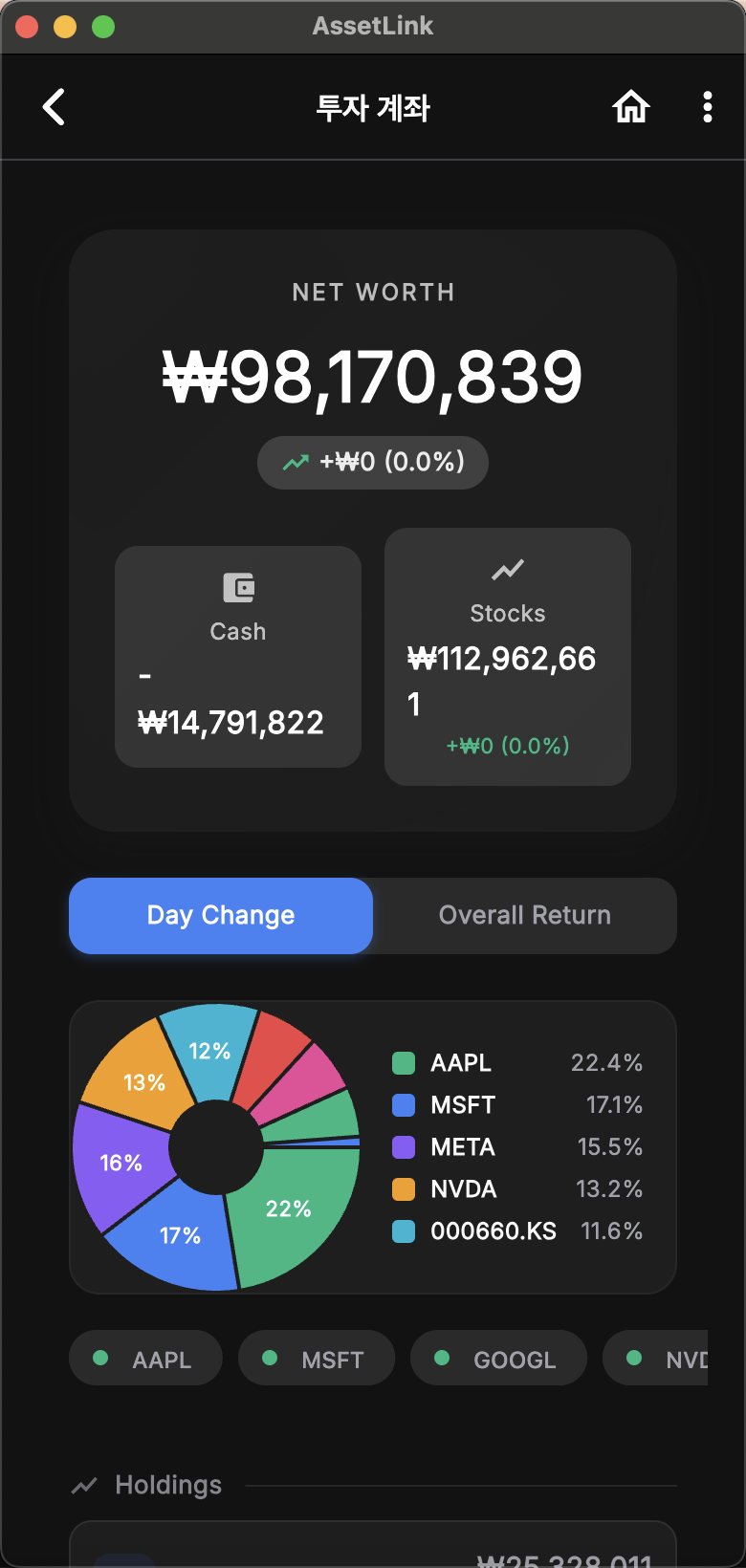
Connect Finnhub (US stocks) or KRX (Korean stocks) APIs to automatically reflect real-time prices and portfolio valuations.
Separating Cash & Holdings
Clearly distinguish uninvested cash (buying power) from actual stock holdings within your brokerage account. Track cash balance changes from dividends, purchases, and sales precisely.
Tax-Optimized Lot Tracking
The lot you choose when selling determines your capital gains tax. AssetLink tracks every purchase lot and lets you apply FIFO, LIFO, or custom lot selection to minimize tax exposure. Short-term and long-term gains are classified separately.
RSU & Stock Option Vesting
Record vesting events (shares received as compensation with no cash outlay) via a dedicated Vesting tab. Vested amounts are automatically reflected as income under your RSU/Stock Option income category.
Performance Analysis
Compare Realized P&L, Unrealized P&L, Day Change, and Overall Return for a comprehensive view of portfolio performance.
Include Stock Gain Setting
Control how stock data affects your asset valuation and income/expense analysis. Toggle at any time via the ⋮ menu in the Trends screen. ON: assets reflect market value; vesting income and capital gains/losses appear in income/expense totals. OFF: assets reflect cost basis only; all stock events are excluded from income/expense analysis — ideal for a clean household budget view.
Multi-Currency
Designed for users with global financial exposure — overseas shopping, foreign investments, or living abroad.
Activating Currencies & Setting Rates
Enable currencies like USD, KRW, or EUR and apply daily-updated live rates or your own fixed exchange rates.
Cross-Currency Transfers
When sending from a USD account to a KRW account, enter the actual bank rate or final received amount. Any difference from the theoretical rate is automatically handled as FX Gain/Loss.
Unified Asset View
All assets in different currencies are automatically converted to your base currency (e.g. KRW) on the dashboard for a unified net worth view.
Sync & Security
Privacy-first by design. Here's how to keep your financial data safe and fully under your control.
Google Drive Sync
'Your Drive, Your Rules.' Optionally link your personal Google account to create encrypted backups in Drive. Configure auto-push and polling interval freely. J-Esprisoft cannot access these files.
Multi-Device Use & Conflict Resolution
When data has been independently modified on multiple devices (e.g. Mac and Android), resolve conflicts by choosing the correct version and using Force Push or Force Pull. Automatic merge sync is planned for a future release.
No Passphrase Recovery by Design
Your passphrase is the only master key to your database. J-Esprisoft intentionally provides no server-side recovery mechanism — this protects your privacy. Always store your passphrase in a password manager.
FAQ
Can I use AssetLink without an internet connection?
Yes. AssetLink is fully offline. Internet is only needed for optional Google Drive sync and exchange rate updates.
Is my data sent to J-Esprisoft servers?
No. Your data is stored only on your device and optionally in your personal Google Drive. We have zero access.
What happens if I forget my passphrase?
The database cannot be decrypted without the correct passphrase. There is no recovery option — this is by design to protect your privacy.
Is the app free?
AssetLink is free during the current beta period. Pricing beyond beta has not been decided yet.
Which platforms are supported?
Windows 10/11, macOS 12+, and Android 8.0+. iOS support is planned for a future release.